

Wild Robin Casino App Download and Login Guide
The Wild Robin Casino App page is here to help readers understand how mobile access works before they try to install anything. Because app availability can differ by device and region, the first question is usually whether the brand offers a true downloadable app or a browser-based shortcut. This guide explains the download, setup, and login flow in plain English. It also points out what to check before you enter account details.
If you are comparing the Wildrobin Casino App with the mobile website, the differences are usually about convenience, permissions, and how updates are handled. Some users want an icon on the home screen, while others just want faster sign in and fewer taps. This page walks through both Android and iPhone access, plus the features that matter most once you are inside. It is written for people who want practical advice rather than hype.
Wild Robin App Download for Android and iPhone Devices

Android users usually have more download options, which is why the Wild Robin App Download process can look different from one phone to another. Some mobile casino brands use a direct APK, while others rely on an installable browser experience that behaves like an app. The main thing is to match the file or shortcut type with your device. That keeps setup simple and avoids unwanted permission prompts.
On Apple devices, the Wildrobin App Download path is often tied to Safari and a home-screen shortcut rather than a store listing. That is because iPhone rules can limit how gaming apps are packaged and updated. If a genuine app build exists for your region, the steps may still feel similar to a normal install. The important part is checking which method the site is actually offering before you start.
How do Android users usually get started?
For Android phones, the Wild Robin App path often begins in the browser, where you either open an APK file or save a progressive web app shortcut. That means the first useful check is whether your phone allows installs from the source you are using. If the build is web-based, you may not need a full installation at all. The end result can still feel app-like on the home screen.
A smooth Wildrobin App setup on Android usually depends on storage space, browser version, and notification permissions. If any of those are blocked, the download may stall or the icon may not appear correctly. It is also wise to keep only one active copy of the shortcut so you do not end up with duplicate entries. Small checks like these save time later.
What is different on iPhone?
On iPhone, the Wild Robin App Download process is often handled through Safari with the Add to Home Screen option. That makes the experience feel like an app even when the actual service is still running in a browser. Because iOS is more restrictive, you may see fewer installation choices than on Android. The upside is a cleaner setup with fewer system-level permissions.
If you are using a Wildrobin App shortcut on iPhone, updates are usually handled by the website rather than by the App Store. That means refreshing the page or re-adding the icon can matter after a major change. You may also notice that some features depend on browser support, especially push notifications and saved sessions. A quick test sign in is the easiest way to confirm everything is working.
Wildrobin App Installation Steps for a Smooth Setup
Most setup problems are caused by permissions, outdated browsers, or trying to open the wrong file type, which is why the Wild Robin App installation flow should always start with a few basic checks. If those details are handled early, the rest of the process is usually straightforward. A clean device also helps the login screen load faster. That saves time and lowers the chance of a failed install.
The Wildrobin App Download experience is easiest when you know whether you are installing a true app package or simply saving a mobile shortcut. Both can work well, but they are not identical, and the steps should match the method. The list below shows a practical order for setup. It is especially useful if you are moving between Android and iPhone.
Why do some installations fail halfway through?
Half-finished installs often come from interrupted downloads, low storage, or security settings that stop the file from opening. With the Wildrobin App flow, the browser may save the package but never hand it over to the operating system correctly. That can make it look like nothing happened even when the file arrived. Checking storage and permissions before retrying is usually the fastest fix.
Another common issue is using an outdated browser that does not handle modern install prompts well. The Wild Robin App may also need you to approve pop-ups or site data before it will launch correctly. If the icon appears but refuses to open, uninstalling the broken shortcut and starting again can help. A fresh attempt is often cleaner than trying to patch a bad first install.
What should you do after the first launch?
The first launch of the Wildrobin App Download should be treated as a quick check, not a full game session. Look at the lobby, sign in once, and make sure the screen scale feels comfortable on your device. If the text is too small or the menu is clipped, rotate the screen or change the browser zoom before you go any further. That makes the app easier to use long term.
It also helps to review notifications, saved logins, and any privacy prompts before you start playing. The Wild Robin App can only feel seamless if those settings match how you want to use it. A few seconds spent here can prevent repeated alerts later. Once the basics are set, daily access becomes much smoother.
Follow these steps in order if you want a cleaner Wild Robin App Download setup on a phone or tablet.
- Confirm that your device has enough free storage and a recent browser version before you start.
- Open the official mobile page and check whether it offers an APK, a web app prompt, or an Add to Home Screen option.
- Allow the installation permission or browser prompt that matches your device, then wait for the file or icon to finish loading.
- Open the app or shortcut, review any notification or location settings, and accept only the permissions you actually need.
- Run a short test sign in so you can make sure the Wildrobin App launches properly and keeps your session stable.
If any of those steps fail, repeat the process once after clearing the browser cache and restarting the device. That is often enough to fix a stalled Wild Robin App install.
Wild Robin Login App Access and Account Sign In

Mobile sign in is usually quicker than desktop sign in because the app or shortcut can remember your device, and that is where the Wild Robin Login App label matters most. When the credentials are saved correctly, you can reach the lobby in a few taps. If not, the problem is often a simple typo or a stale password cache. A calm, methodical login check usually solves it.
The Wildrobin Login App experience should feel familiar whether you are using Android, iPhone, or a browser shortcut. The account details are the same, but the way they are stored can differ by platform. That is why some people get locked out after an update even though their password is correct. A few quick troubleshooting habits can make sign in far less frustrating.
What details do you need to sign in?
A standard Wild Robin Login App sign in usually asks for the same account email or username you used at registration, plus the matching password. Some systems will also ask for a verification code if the device looks new or the session has expired. That extra step is there to protect the account, not to slow you down. Once the data is saved correctly, future logins are much faster.
If you rely on autofill, make sure the saved entry still matches your current credentials. A Wildrobin App update or browser reset can clear stored details without warning. That is why it is smart to keep the latest password written somewhere secure or stored in a password manager. A correct login record saves a lot of guesswork later.
What if the app keeps rejecting your login?
When a Wildrobin Login App keeps rejecting a correct password, start by checking for caps lock, spacing, and a weak connection. Then clear cache, restart the device, and try again with fresh data. These small resets often fix an old session that is still hanging in the background. If the account is still blocked, a password reset is usually the next step.
It is also worth checking whether the Wild Robin App is asking for a security code or a browser confirmation you have not noticed. On mobile, those prompts can be easy to miss if notifications are muted or pop-ups are blocked. Try signing in from the main browser as a comparison if the shortcut behaves oddly. That can tell you whether the issue is account-based or device-based.
These quick checks solve many Wildrobin App sign in problems before you spend time troubleshooting deeper issues.
- Check that your email or username is entered exactly as registered.
- Confirm the password, including capital letters and special characters.
- Clear browser cache or reopen the app if the login screen freezes.
- Use password reset or two-step verification if the site asks for extra confirmation.
If those steps do not help, try signing in from another browser so you can see whether the Wild Robin App issue is tied to the device or the account.
Top Features Inside the Wildrobin Casino App Experience
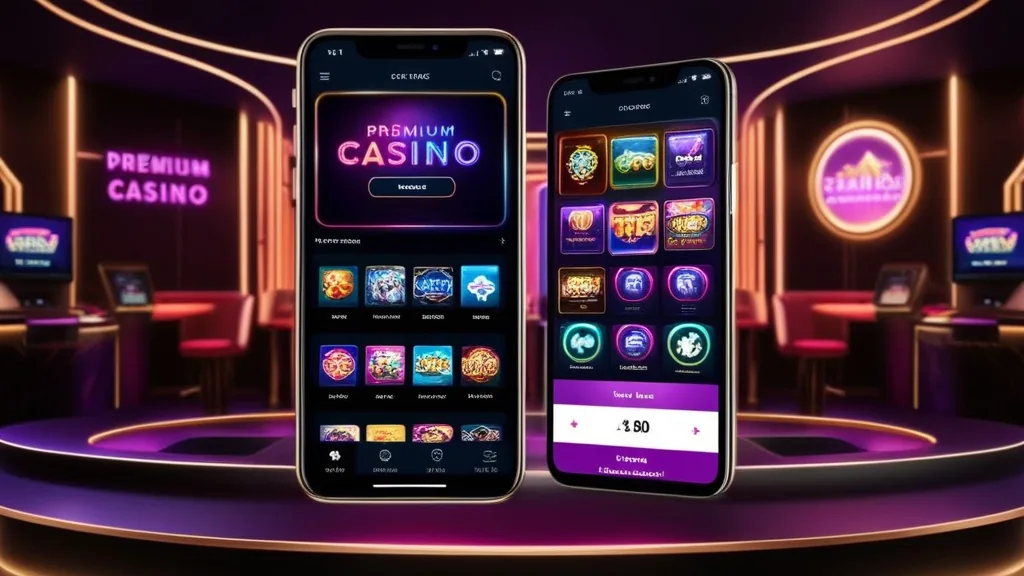
A mobile casino interface matters because space is limited, and the Wildrobin App typically condenses the lobby into cleaner menus and faster shortcuts. That usually makes it easier to jump between games, promotions, and account tools without endless scrolling. The best features are not always flashy; they are the ones that save taps. On a phone, even small improvements feel significant.
The Wild Robin Casino App experience is also shaped by speed, because mobile users expect near-instant loading when they reopen the screen. Better navigation, saved filters, and balance visibility all make a noticeable difference. You are not just looking for entertainment features, but for tools that reduce friction. That is what makes an app feel genuinely useful rather than simply compact.
Which features matter most on a small screen?
The most useful Wildrobin App features are usually favourites, search filters, and a lobby that keeps categories easy to scan. These tools matter because they cut down on repetitive scrolling. On a small screen, a clean menu is more valuable than a crowded page of banners. It helps you find what you want before the session loses momentum.
A smart Wild Robin App layout also keeps the balance display, cashier access, and game thumbnails readable without zooming. That matters when you are using one hand or checking the screen quickly on the move. The better the typography and spacing, the less likely you are to tap the wrong button. Good design quietly improves the whole session.
How does the app help with play sessions?
The Wild Robin Casino App can make short sessions feel smoother by remembering where you were and reducing the number of steps needed to return. That means less typing, fewer page reloads, and less hunting for the same menu every time. Even if the games are identical, the route to them feels faster. For many users, that convenience is the real draw.
A Wildrobin App Download that opens quickly and holds a stable login can also make break-time play more practical. You can check a balance, review a promotion, or reopen a favourite game without starting from scratch. That is especially helpful if you only have a few minutes. Speed and continuity are what give mobile access its edge.
Wild Robin App Compatibility, Security, and Updates Overview

Compatibility is often the deciding factor when people compare mobile casino access, and the Wild Robin App usually performs differently depending on browser support and operating system. Android often offers the most flexibility, while iPhone users may rely more on Safari-based shortcuts. Those differences do not always change the look of the lobby, but they do affect installation and updates. Knowing that up front avoids a lot of confusion.
Security and update habits also matter because a Wildrobin App shortcut can become outdated if the site changes the way it loads. A secure device, a current browser, and a sensible password routine all help protect your account. Mobile access is easiest when the software and the user both stay up to date. That is the simplest way to keep logins stable and private.
How compatible is it across devices?
The Wild Robin App is usually most flexible on Android because the system allows more installation formats. iPhone access can still be smooth, but it may depend on Safari and home-screen shortcuts instead of a store-style download. Tablets often feel comfortable because the extra screen space makes menus easier to navigate. Desktop browsers are useful for testing if a login problem is device specific.
If the Wildrobin App looks slightly different from one device to another, that is normal. Mobile web builds often adapt themselves to the screen rather than keeping one rigid layout. What matters is that the core tools still work, including sign in, balance checks, and game loading. A device that can run a modern browser is usually enough for basic access.
What keeps the app secure and current?
Good security starts with the device itself, so the Wild Robin Casino App should always be used on a phone with a lock screen and updated browser. Password managers and two-factor checks are useful because they reduce the chance of weak or repeated credentials. You should also avoid storing account details on shared devices. Small habits like these make mobile play safer.
Updates matter because a Wildrobin Login App shortcut can fall behind after a site redesign or browser change. If pages load strangely, clear the cache, refresh the shortcut, or add the home-screen icon again. Those simple steps often bring back the correct layout without changing your account. Keeping both the browser and the device current prevents most of the avoidable glitches.
| Device or platform | Typical access method | What to expect | Update note |
|---|---|---|---|
| Android | APK file or browser-based shortcut | Most flexible setup with faster install prompts | Recheck permissions after major updates |
| iPhone | Safari home-screen shortcut or web app | Cleaner setup with fewer installation choices | Re-add the shortcut if the layout changes |
| Tablet | Browser or PWA-style access | Larger screen makes navigation easier | Refresh the session after browser updates |
| Desktop browser | Standard login page | Useful for troubleshooting and account checks | Keep the browser current for security |